
Installation with Windows#
This section covers the installation of SunPeek using Docker on Windows.
Prerequisites#
To successfully run SunPeek you need the following minimum requirements:
5GB free disk space (this is needed for unpacking the application, after installation it will use around 2 GB)
A 7th Gen i5 or better processor.
8GB RAM
Get Docker#
SunPeek is shipped with Docker so it works reliably on a wide range of computer environments. Please follow the links below for instructions depending on your environment:
On desktop windows, the easiest way to get Docker is to install Docker-Desktop.
Get SunPeek#
For convenience, a simple installer is provided. It allows some basic configuration for running SunPeek on a single machine, optionally accessible over a local network.
Note
The installer is designed to install into an empty directory and will not attempt to clean up old installations, make sure the directory you select below is empty.
Download this file, and unzip it to a temporary location.
Run
sunpeek_easy_installer.exe. You might need administrator rights for that.This will open a small window (see screenshot below). It contains two input fields:
Directory: This will be the location where the SunPeek start script will be stored.
URL: This is the url that is used for running SunPeek (and the API). If you are running the application only for access from the local machine, leave the default in the url field.
Click on setup to start the configuration. It should be done within seconds and new files should be available in the directory you specified.

Run SunPeek#
Make sure Docker-Desktop is running by starting the Docker Desktop application.
Open the directory you specified, and double-click the
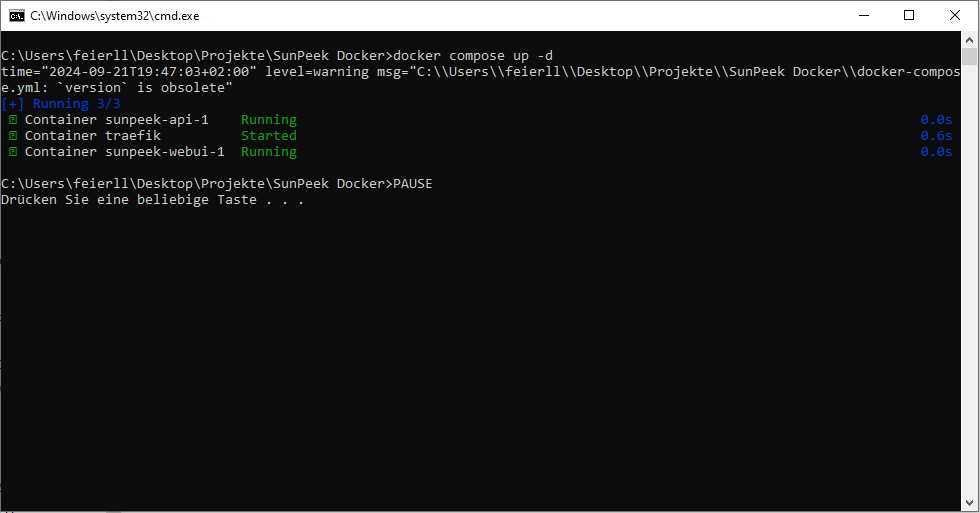
start.batfile. A command prompt will open to display the startup process.Docker compose will download the required application components. The first time this may take several minutes. Once you see all components listed as ‘started’ or ‘healthy’ you can close the command prompt.
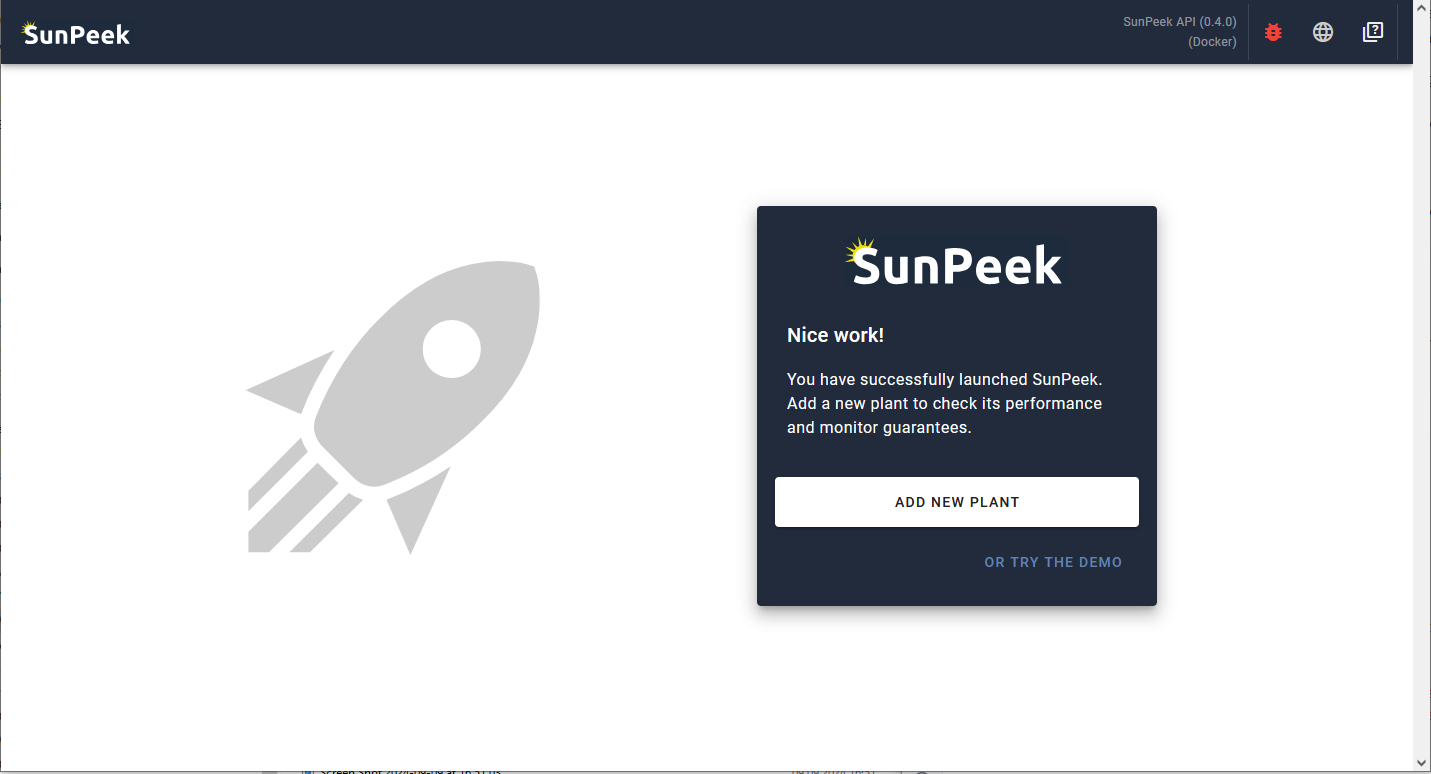
Open a browser and go to the url specified in the setup tool (e.g., http://localhost if you left it to the default) to access the SunPeek WebUI.
Stop SunPeek#
To stop the application, assuming no other processes are running under docker on your machine, simply shut down the docker engine. If you are using Docker Desktop, this can be done by right-clicking the Docker icon the system tray and selecting Quit.
Update SunPeek#
Upgrading to a new version of SunPeek Updates to SunPeek are accomplished by pulling newer versions of the docker images used to run the application. These are used to create new containers in place of the old ones. If you used the default configuration, a persistent docker volume will have been created, this should avoid data loss, however keeping backups is always recommended.
You can get this new version using two different ways:
Using the Console
One option is to use a terminal / command prompt:
Open a terminal/command prompt in the configuration folder selected during setup.
Run
docker compose pullto download the latest imagesRun
docker compose up -dto recreate any containers which have updated images.
Using Docker Desktop
You can also update SunPeek directly in Docker-Desktop.
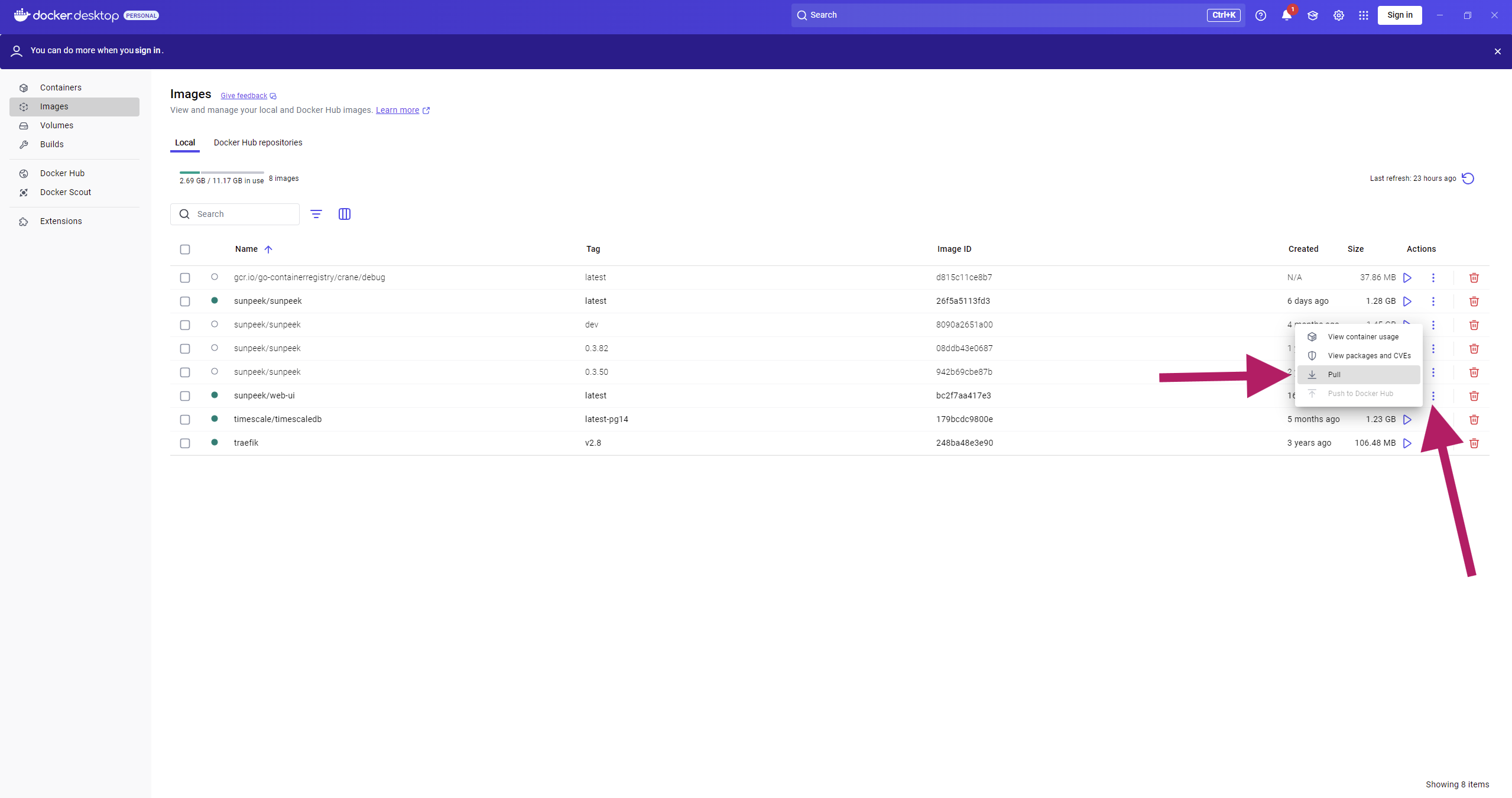
open Docker Desktop
Switch to the “Images” tab.
This page should display a list containing images with the name
sunpeek/web-uiandsunpeek/sunpeek(with tag: latest).Please click on the menu-symbol (on the outer right) and select “Pull”.
This should then download the newest version of SunPeek WebUi and the SunPeek Backend respectively.
After the new versions have been downloaded, please start again, using the start.bat file.