

Installation with Linux#
This section covers the installation of SunPeek using Docker on Linux.
Prerequisites#
To successfully run SunPeek you need the following minimum requirements:
5GB free disk space (this is needed for unpacking the application, after installation it will use around 2 GB)
A 7th Gen i5 or better processor.
8GB RAM
Get Docker#
SunPeek is shipped with Docker so it works reliably on a wide range of computer environments. Please follow the links below for instructions depending on your environment:
To install docker on Linux go to https://docs.docker.com/engine/install/ and select the relevant platform and follow the instructions.
Get SunPeek#
For convenience, a bash script is provided. It allows some basic configuration for running SunPeek on a single machine, optionally accessible over a local network.
Note
The install script is designed to run in an empty directory and will not attempt to clean up old installations
In the location you want to store sunpeek configuration, run
curl https://gitlab.com/sunpeek/sunpeek/-/raw/main/deploy/quick-setup.sh?inline=false -o quick-setup.shRun
quick-setup.sh(usually just with the commandsh ./quick-setup.sh) and enter the url which sunpeek can be accessed at when prompted.
Run SunPeek#
Go to the terminal and run
docker compose up -dDocker compose will download the required application components. The first time this may take several minutes. Once you see all components listed as ‘started’ or ‘healthy’ you can continue.
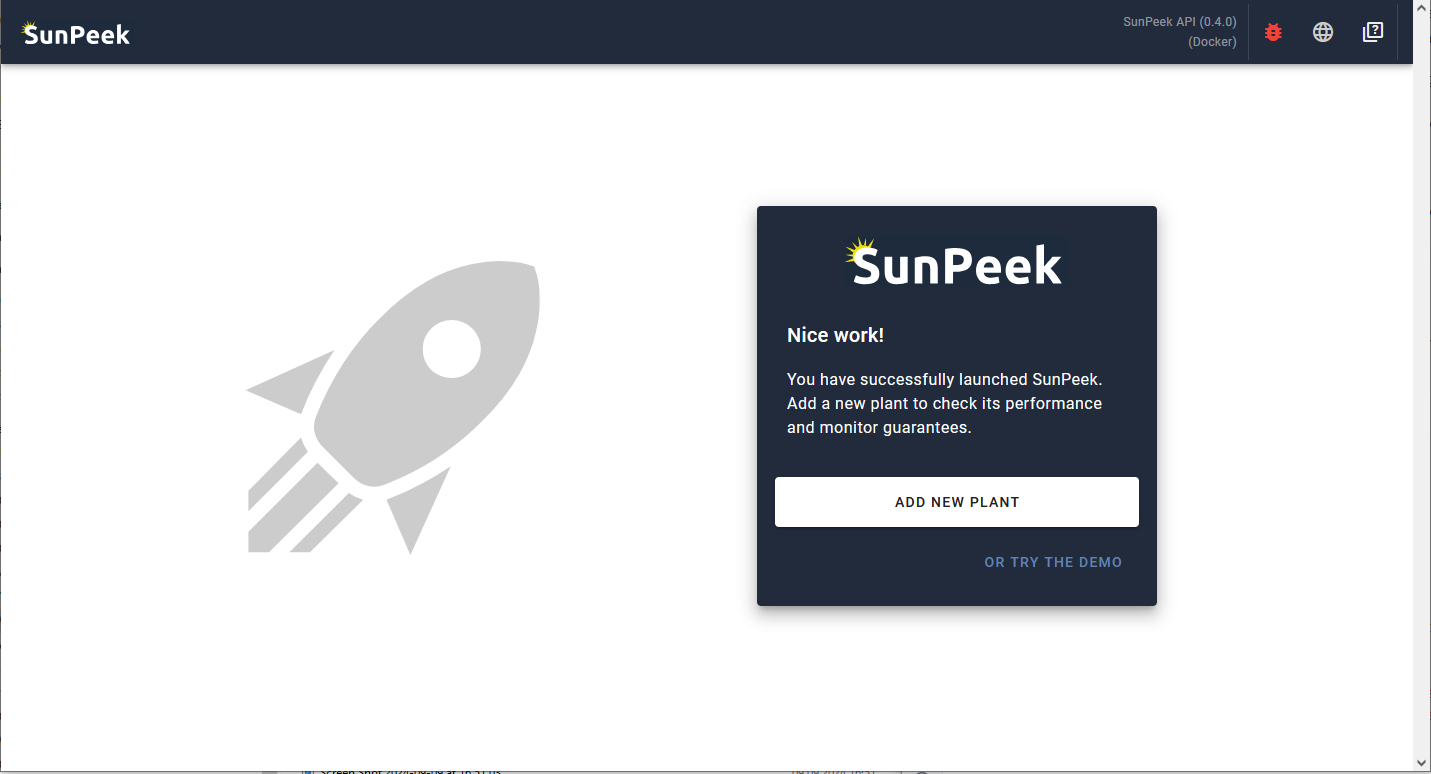
Open a browser and go to the url specified in the setup (e.g., http://localhost if you left it to the default) to access the SunPeek WebUI.
Update SunPeek#
Upgrading to a new version of SunPeek Updates to SunPeek are accomplished by pulling newer versions of the docker images used to run the application. These are used to create new containers in place of the old ones. If you used the default configuration, a persistent docker volume will have been created, this should avoid data loss, however keeping backups is always recommended.
Open a terminal/command prompt in the configuration folder selected during setup.
Run
docker compose pullto download the latest imagesRun
docker compose up -dto recreate any containers which have updated images.